目标:WSL2 + Ubuntu 24.04 LTS
一、检查 Windows 版本
按 Win + R,输入:
winver
建议:
- Windows 11:推荐。
- Windows 10:建议 22H2,并确保已安装支持 WSL2 的更新。
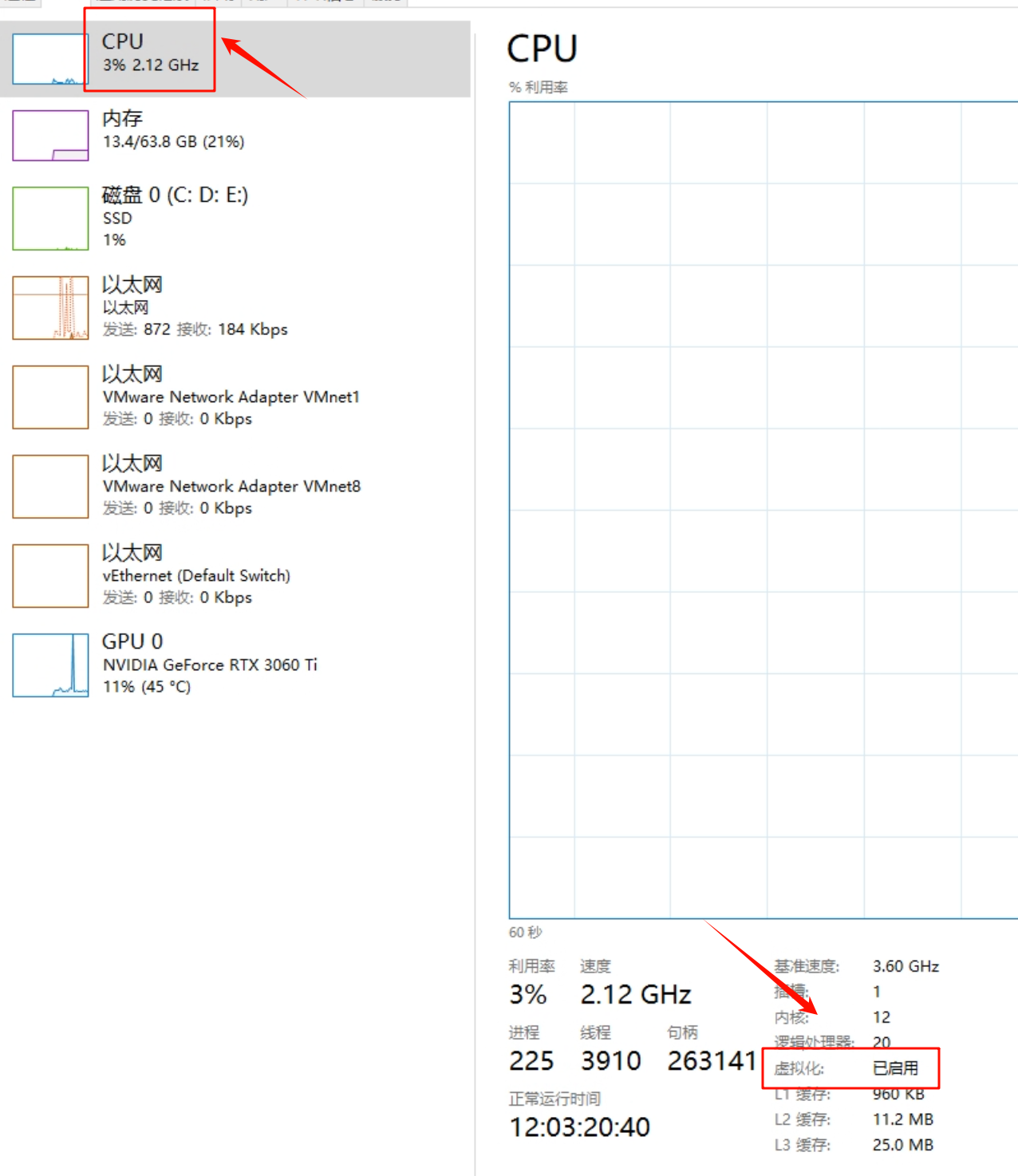
还需要在 BIOS 中开启 CPU 虚拟化:
- Intel:Intel VT-x
- AMD:AMD-V / SVM
可以在任务管理器中查看是否开启了虚拟化
二、开启 WSL2
推荐使用管理员 PowerShell
- 右键点击 Windows 开始菜单。
- 选择「终端(管理员)」或「Windows PowerShell(管理员)」。
- 执行:
wsl --install
这条命令会安装 WSL 所需组件,并通常安装默认 Ubuntu 发行版(默认2026版的,如果不需要就跳过)。
如果提示需要重启,先重启 Windows。
三、安装指定版本 Ubuntu 24.04
重启后,再次打开管理员 PowerShell。
先查看可安装的 Linux 发行版:
wsl --list --online
找到:
Ubuntu-24.04 Ubuntu 24.04 LTS
然后执行:
wsl --install -d Ubuntu-24.04
如果 Microsoft Store 下载遇到问题,可以尝试:
wsl --install -d Ubuntu-24.04 --web-download
这会安装指定的 Ubuntu 24.04,而不是不确定版本的默认 Ubuntu。
四、初始化 Ubuntu
安装完成后,Ubuntu 会自动启动,第一次启动需要等待初始化。
它会要求创建 Linux 用户:
Enter new UNIX username:
例如:
user
然后设置密码:
New password:
Retype new password:
注意:Linux 输入密码时不会显示星号,这是正常现象。
五、设置 WSL2 为默认版本
回到 PowerShell,执行:
wsl --set-default-version 2
再查看已安装系统:
wsl -l -v
预期结果:
  NAME            STATE       VERSION
* Ubuntu-24.04    Running     2
如果显示 VERSION 为 1,执行:
wsl --set-version Ubuntu-24.04 2
然后设置默认发行版:
wsl --set-default Ubuntu-24.04
六、更新 Ubuntu 系统
首先更改为中国的源
使用的是 Ubuntu 24.04 LTS(WSL2),推荐配置清华大学镜像源,安全更新仍保留 Ubuntu 官方源。
Ubuntu 24.04 使用新的 .sources 配置格式,文件位置是:
/etc/apt/sources.list.d/ubuntu.sources。
1. 备份原配置
在 Ubuntu 终端执行:
sudo cp /etc/apt/sources.list.d/ubuntu.sources \
/etc/apt/sources.list.d/ubuntu.sources.bak
2. 配置清华源
直接复制执行下面整段命令:
sudo tee /etc/apt/sources.list.d/ubuntu.sources > /dev/null <<'EOF'
Types: deb
URIs: https://mirrors.tuna.tsinghua.edu.cn/ubuntu
Suites: noble noble-updates noble-backports
Components: main restricted universe multiverse
Signed-By: /usr/share/keyrings/ubuntu-archive-keyring.gpg

Types: deb
URIs: http://security.ubuntu.com/ubuntu/
Suites: noble-security
Components: main restricted universe multiverse
Signed-By: /usr/share/keyrings/ubuntu-archive-keyring.gpg
EOF
3. 更新软件包索引
sudo apt clean
sudo apt update
4. 验证配置
cat /etc/apt/sources.list.d/ubuntu.sources
应该看到:
mirrors.tuna.tsinghua.edu.cn:清华大学镜像源security.ubuntu.com:官方安全更新源noble:Ubuntu 24.04 代号
接着进入 Ubuntu,执行:
sudo apt update
sudo apt upgrade -y
安装常用开发工具:
sudo apt install -y \
    build-essential \
    git \
    wget \
    curl \
    vim \
    unzip \
    python3 \
    python3-pip \
    python3-venv
检查 Ubuntu 版本:
lsb_release -a
应该看到:
Description: Ubuntu 24.04 LTS
Codename: noble
七、验证 WSL2 和 GPU
先在 PowerShell 执行:
wsl --update
wsl --status
wsl -l -v
然后在 Ubuntu 执行:
uname -r
nvidia-smi
如果 nvidia-smi 能显示 NVIDIA 显卡信息,说明 WSL 的 GPU 接口已经可以使用。
重要
NVIDIA 显卡驱动安装在 Windows 宿主机,不要在 Ubuntu WSL 中再安装完整的 Linux NVIDIA 驱动。
八、wsl迁移到其他盘
假设你希望存放在D 盘:
D:\WSL\Ubuntu-24.04
先关闭 WSL:
wsl --shutdown
创建父目录:
New-Item -ItemType Directory -Force -Path "D:\WSL"
执行迁移:
wsl --manage Ubuntu-24.04 --move "D:\WSL\Ubuntu-24.04"
等待迁移完成,不要中途关闭终端或电脑。
确认迁移成功
执行:
wsl -d Ubuntu-24.04
进入 Ubuntu 后:
lsb_release -a
whoami
df -h /
然后回到 PowerShell,查询新的注册路径:
Get-ChildItem "HKCU:\Software\Microsoft\Windows\CurrentVersion\Lxss" |
ForEach-Object {
    Get-ItemProperty $_.PSPath |
    Select-Object DistributionName, BasePath
}
预期 Ubuntu 的路径变成:
D:\WSL\Ubuntu-24.04
虚拟磁盘通常就是:
D:\WSL\Ubuntu-24.04\ext4.vhdx